New in IT Portal 4.6.41 · Q4 2026
Overview
Your documentation platform holds the keys to every customer you manage, so the login to it deserves the strongest protection you can get. One-time codes were a big step up from passwords alone, but they still have a weak spot: a convincing fake login page can ask for the code and use it straight away.
IT Portal 4.6.41 adds passkey sign-in for the portal itself. After entering their username and password, users confirm it is really them with their fingerprint, face, Windows Hello PIN, phone or a security key — no six-digit code to find and type.
How it works
- An administrator switches passkeys on for the portal, then requires a passkey for the users who should use one.
- Each user registers a passkey from My Settings in a few seconds — on their laptop, their phone, a security key, or all three. If a passkey is required and they have not set one up yet, IT Portal walks them through it at their next login.
- From then on, signing in is a tap or a glance. Enter your password, confirm on your device, and you are in.
Passkeys that sync through Apple, Google or Microsoft accounts follow users to their other devices, and a phone can be used to approve a sign-in on a computer by scanning a QR code.
Why it matters
- Phishing-resistant. A passkey only works on your real portal address. A lookalike login page gets nothing it can reuse.
- Faster sign-in. No hunting for an authenticator app and racing a 30-second timer.
- Nothing to steal on our side. IT Portal only keeps the public half of each passkey; the private part never leaves the user's device or security key.
- No lock-outs. Users can register several devices, cannot delete their last passkey while one is required, and an administrator can reset a user's passkeys in one click when a laptop or phone goes missing.
- Fits your existing MFA policy. Passkey sits alongside the other MFA methods IT Portal already supports, so you can roll it out user by user.
Not to be confused with passkeys in the password manager
This is about signing in to IT Portal itself. IT Portal can also store passkeys for the websites and systems you manage, right next to their passwords, through the browser extension — read more in Passkeys in IT Portal: Passwordless, Phishing-Resistant Logins.
Getting started
An administrator turns on Allow users to sign in with passkeys under Admin Settings → Site Settings → Site Options, then ticks Require Passkey (FIDO2) on the MFA tab of each user. Users add their passkeys under My Settings → Passkeys. Passkeys need the portal to be reached over HTTPS and a current browser.
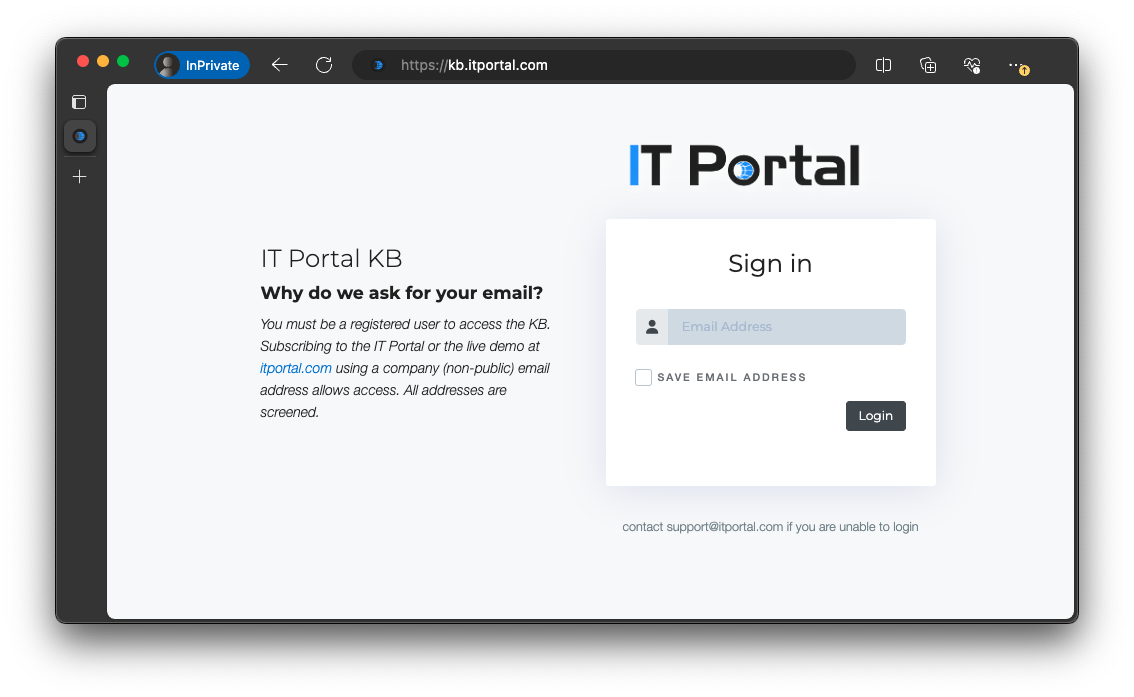
The full walkthrough, including recovery and troubleshooting, is in our knowledge base: Passkey Sign-In for the IT Portal.
Passkey sign-in is part of IT Portal 4.6.41, our Q4 2026 release.