Coming in the Version 5 UI · Q1 2027
Overview
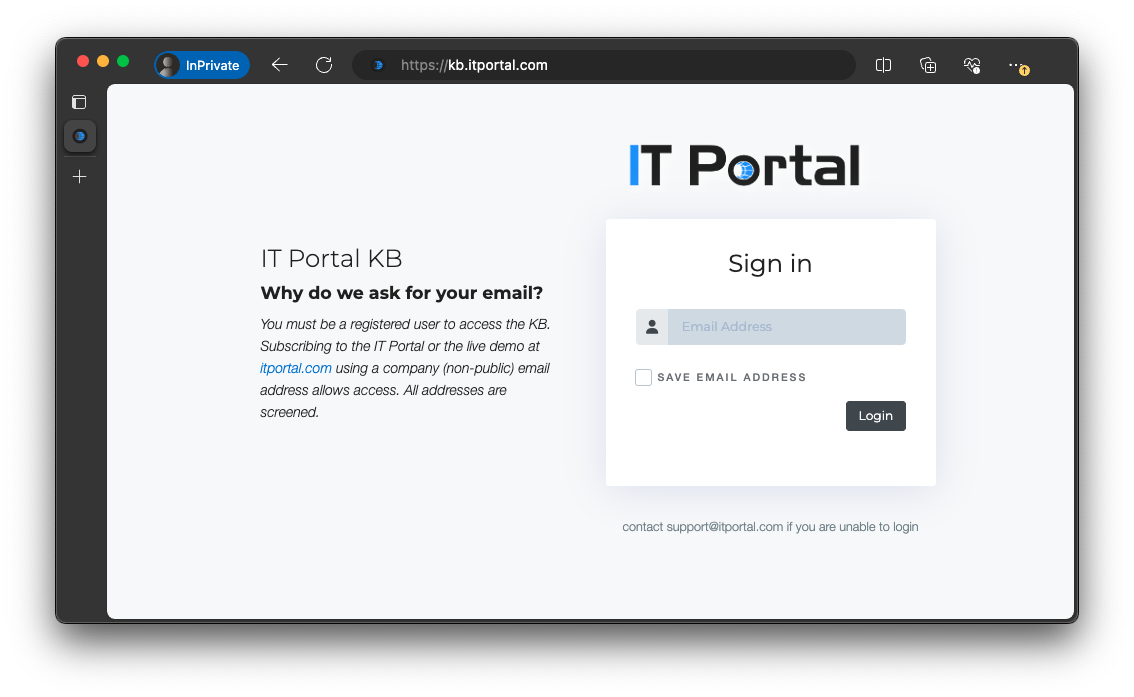
Your login page is the first thing your clients and technicians see every day. For an MSP, it is also a piece of your brand: it should look like your portal, not a generic sign-in box.
IT Portal has long let you add your logo, a header, a disclaimer and a footer. The Version 5 UI, arriving in Q1 2027, goes much further with a live branding studio for the login page — and you can preview it today.
Design it live
In the Version 5 UI, Admin Settings → Site Settings → Branding gains a Login Page tab that works like a design studio. Controls sit on one side; a live preview of your login page sits on the other and updates as you type. Switch the preview between desktop, tablet and phone to make sure it looks right everywhere.
The controls are grouped so you can go as light or as deep as you like:
- Identity — the title shown on your login page, alongside the logos you already manage.
- Layout — centered, split left, split right or full bleed, with your choice of card style.
- Theme — palette, accent color, font and the default light or dark look.
- Background — brand, solid color, gradient or your own uploaded image.
- Content — a welcome message, message of the day, disclaimer and footer.
- Fine-tune — precise control over text colors, the login card, buttons, input fields, the error message, logo size and even custom CSS.
- Options — preview states like the error message, SSO sign-in and other login options before a user ever sees them.
Every fine-tune setting is optional. Leave something blank and it simply follows your theme, so you only change what you care about.
See it for real before you save
One click opens your design on the actual login page, clearly marked as an unsaved preview. Share the look with your team, get sign-off, then save — and what you previewed is exactly what your users get.
Company-wide themes, personal choice
Branding does not stop at the login page. Administrators can set company theme defaults for the whole portal — sidebar style, menu density, menu behaviour and more — and new users start with that look automatically.
Users who prefer their own style keep it. A simple Use company default switch lets anyone follow the company theme or go back to their personal one at any time.
Why it matters
- A login page that sells your brand. Give clients a polished, on-brand first impression every time they sign in.
- No guesswork. See every change instantly, on every screen size, before anyone else does.
- Safe by design. Preview links can't be used to inject content onto your login page, and custom styling is checked before it is saved.
- Consistency without control-freakery. A company-wide look by default, with room for personal preference.
Getting started
We are completing the Version 5 UI in Q1 2027, and the login page branding studio is part of it. It is not available in the current interface.
Want an early look? A preview of the Version 5 UI is available today on any portal: just add /v5 to your portal address (for example, https://yourcompany.itportal.com/v5). Administrators will find the studio under Admin Settings → Site Settings → Branding.
For details on the studio and company theme defaults, see the knowledge base article Login Page Branding Studio (Version 5 UI). See what else is new in the IT Portal 4.6.41 release notes.
Your portal, your brand — right from the very first screen.