When something breaks in a client environment, the first question is not always "How do we fix it?"
It is often "What changed?"
For MSPs and IT teams managing VMware environments, visibility into recent changes can make troubleshooting more focused and less dependent on guesswork. A performance issue, access problem, configuration error, or unexpected behavior may not come from the system itself. It may be connected to a recent update, adjustment, or undocumented change.
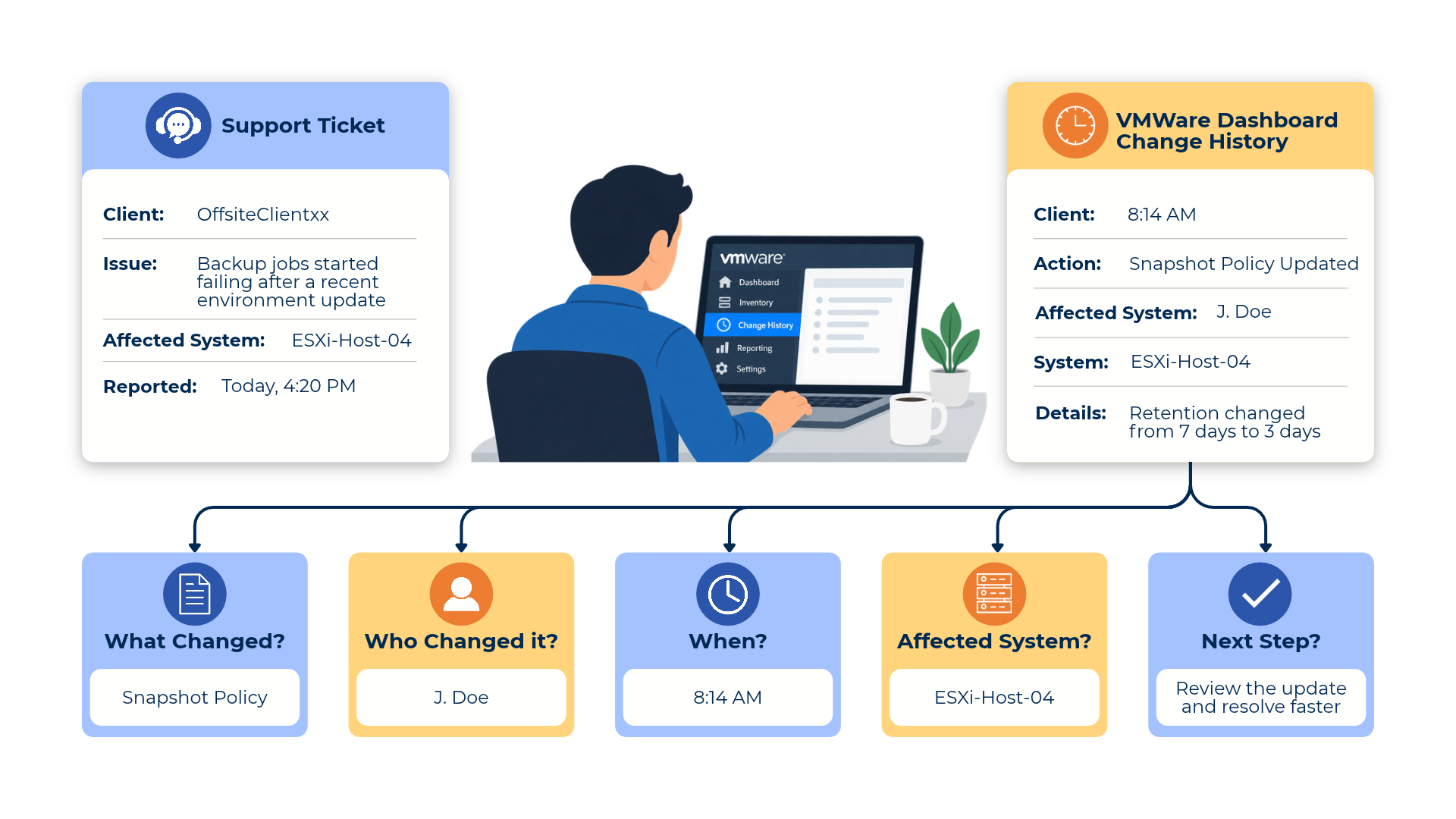
That is where VMware Dashboard Change History becomes valuable. It helps teams review what was modified, who made the change, and when it happened, giving technicians more context before they take action.
Why Change History Matters in VMware Environments
VMware environments can involve many moving parts: virtual machines, hosts, storage, networks, permissions, configurations, and client-specific requirements.
When an issue comes up, technicians often need to understand the environment quickly. Without clear change history, they may have to search through tickets, messages, notes, or past conversations to figure out what happened. That slows down support.
Change history helps answer questions like:
- What was recently updated?
- Who made the change?
- When did it happen?
- Which system or record was affected?
- Could this change be connected to the current issue?
These answers help technicians troubleshoot with more clarity.
The Problem With Undocumented Changes
In many IT environments, changes happen faster than documentation gets updated. A configuration is adjusted. A setting is changed. A VM is updated. A permission is modified. A network detail is revised.
If those changes are not easy to review later, the team may lose important context. This creates problems during support, especially when the technician handling the ticket was not the person who made the change.
Undocumented or hard-to-find changes can lead to:
- Longer troubleshooting time
- More internal questions
- Repeated investigation
- Missed context
- Confusion during handoffs
- Higher dependency on senior technicians
For MSPs, this becomes even harder across multiple client environments.
What VMware Dashboard Change History Helps Teams See
VMware Dashboard Change History helps technicians quickly review key details related to documented VMware changes.
1. What Was Changed. The first step in troubleshooting is understanding what changed. Was a configuration updated? Was a record modified? Was a setting adjusted? Was access changed? Knowing what changed helps technicians narrow the investigation instead of starting from zero.
2. Who Made the Change. When a technician knows who made the update, they can follow up with the right person faster. This is not about blame. It is about context. The person who made the change may know why it happened, what was intended, and whether anything else was affected.
3. When It Happened. Timing matters. If an issue started shortly after a change, that change may be worth reviewing. Knowing when something happened helps the team connect recent activity to current support issues - especially during incident response, ticket escalation, or service review.
4. What Was Affected. Change history is most useful when it points back to the affected system, record, or environment. For MSPs, this matters because technicians may move between different clients throughout the day and need to quickly understand which VMware environment or record they are reviewing.
5. Why It Matters. Change history gives technicians a clearer story behind the environment. Instead of asking "Does anyone remember what happened here?", the team can review the documented history and move forward with better context.
How Change History Supports Faster Troubleshooting
Troubleshooting is not just about technical skill. It is also about having the right information at the right time.
When technicians can review VMware change history, they can better understand whether a recent update may be related to the issue they are investigating. For example:
- A client reports that a workload is behaving differently.
- The technician reviews the VMware dashboard.
- They see a recent configuration-related update.
- They check who made the change and when it happened.
- They review the related record before taking the next step.
That context can help reduce unnecessary searching and make the support process more focused.
How Change History Helps With Team Handoffs
MSP support often involves multiple technicians. One technician may make an update. Another may handle the follow-up ticket. A senior technician may get pulled in later. Without clear change history, every handoff can lose context.
Change history helps keep important information visible. It gives the next technician a better understanding of what already happened, what was changed, and who may have more information. This supports smoother handoffs and helps teams avoid repeating the same investigation.
How Change History Supports Accountability
Clear change history also supports accountability. Again, this is not about pointing fingers. It is about making sure the team can understand how records and environments changed over time.
For MSPs and IT teams, accountability matters because many people may touch the same environment. When updates are documented clearly, it becomes easier to review activity, confirm changes, and maintain trust in the documentation.
Strong documentation should show more than the current state. It should also help the team understand how the current state got there.
Why This Matters for MSPs
MSPs manage multiple clients, systems, and environments at the same time. That means technicians may not always have personal knowledge of every VMware environment they support. They need records, history, and context they can trust.
VMware Dashboard Change History helps reduce reliance on memory by making change details easier to review. This supports:
- Faster troubleshooting
- Better handoffs
- Clearer accountability
- More consistent support
- Stronger documentation habits
- Less dependency on one technician's memory
The more complex the client environment, the more important change visibility becomes.
Where IT Portal Fits In
IT Portal helps MSPs and IT teams organize the documentation behind the work.
For VMware environments, change history gives technicians another layer of context. It helps teams review documented updates, understand what changed, and connect that information to support activity. When VMware records, client documentation and assets, credentials, SOPs, and change history are easier to access, technicians can work with more confidence.
The goal is not just to store information. The goal is to make the right information usable when the team needs it.